How to Get Your Website's Contact Form to Actually Send You Emails

LucidForms Team
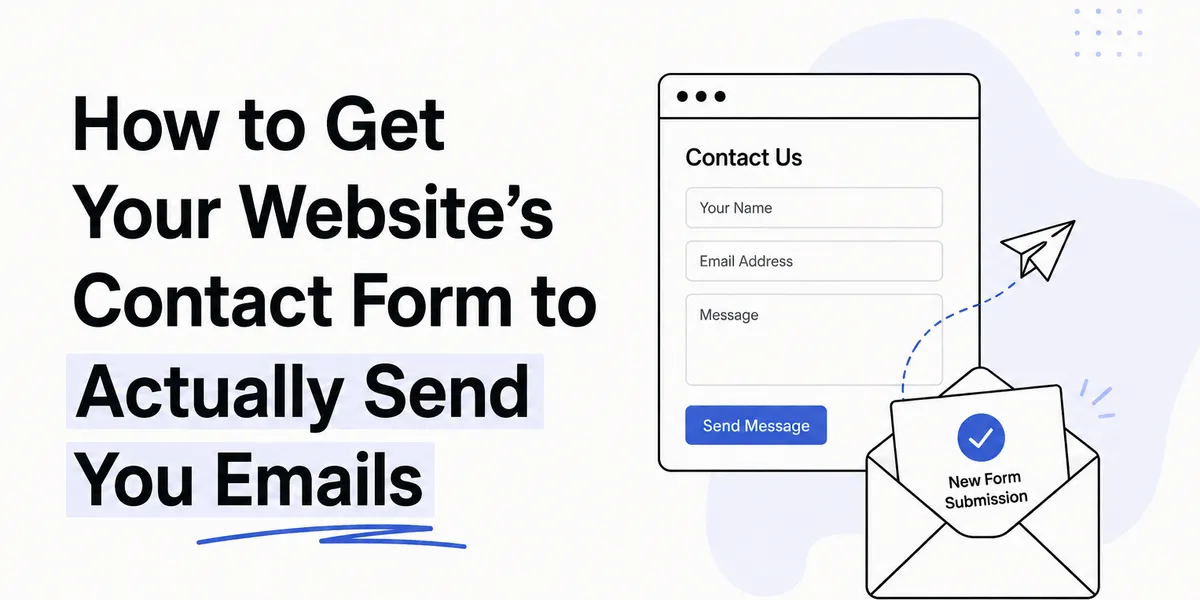
You built the website. You added a contact form. It looks clean. But when someone fills it out and hits submit, nothing happens on your end. No email, no notification, nothing. You find out three weeks later that a potential client tried to reach you and assumed you ignored them.
This is one of those problems that sounds easy until you’re actually dealing with it.
Why a plain HTML form doesn’t send email on its own
A contact form on a static website is basically just a pretty UI. HTML forms can collect data and send an HTTP request, but they can’t send email. Email requires a server, credentials, an SMTP connection, and code to process everything. A form sitting in an HTML file has none of that.
When you built your site with Framer, Webflow, a Squarespace template, or had Claude or another AI tool scaffold something for you, the form might render correctly but the submit button is essentially a dead end unless something on the backend is listening for it.
This is why “just add a contact form” is a bit misleading. The form is the easy part. Getting the data somewhere is the actual problem.
The ways people usually try to solve this
Using mailto: in the form action
<!-- Don't do this -->This technically “works” in that it opens the user’s mail client with the form data pre-filled. But in 2026, most users have no default email client configured on their device. Chrome doesn’t handle it, and the experience varies wildly across browsers and operating systems. It also exposes your email address directly in the source code, which means spam bots will find it.
Writing your own backend
You could write a Node.js server, set up an Express route to handle POST requests, configure Nodemailer, get your SMTP credentials from Gmail or SendGrid, handle errors, deploy it somewhere, and keep it running. That works. It’s also a lot for what is functionally one button.
If you’re a backend developer who’s already running a server for other reasons, this might be fine. But if you built your site with an AI tool or a no-code builder and you just want email notifications when someone fills out your contact form, this path is genuinely overkill.
Using your platform’s built-in forms
Webflow, Framer, Squarespace, and others have form handling built in. If you’re on one of those platforms, it’s worth checking what’s actually included in your plan before reaching for anything else. These built-in solutions are often perfectly fine for simple use cases, and the main limitation is usually that the data is only visible in their dashboard rather than coming to your inbox directly.
The real gaps tend to appear when you’re on a custom HTML site, a statically exported Next.js or Astro site, or any setup where there’s no platform providing built-in form handling.
How form-to-email actually works
The basic pattern is:
- User fills out your form and submits it
- The form sends a POST request to an endpoint somewhere
- That endpoint processes the data and triggers an email to you
- You receive the notification in your inbox
The endpoint is the missing piece for most people. It’s the bit between the form and your inbox. Without it, the request goes nowhere.
A form endpoint service is essentially a server that lives at a public URL, accepts your form submissions, and handles the email delivery for you. You point your form’s action attribute at that URL and the rest is handled.
<form action="https://app.lucidforms.co/s/your-form-id" method="POST"> <input type="text" name="name" placeholder="Your name" required /> <input type="email" name="email" placeholder="Your email" required /> <textarea name="message" placeholder="Your message" required></textarea> <button type="submit">Send</button></form>That’s it for the frontend side. No JavaScript required, no server to deploy. When someone submits the form, the data gets forwarded to your configured email address.
The your-form-id part comes from your dashboard after you create a form.
Each form gets its own endpoint so you can have different configurations,
redirect URLs, and notification addresses for different forms on the same
site.
What to think about before picking a solution
Where does the data actually go?
Some services only show submissions in a dashboard. Others send email notifications. The better ones do both. If your workflow is “check email”, you want a service that sends real email notifications, not just a place to log in and review a table.
What happens after submission?
Without any configuration, most form endpoint services will redirect to a default thank-you page on their domain. You usually want to set a custom redirect URL pointing back to a thank-you page on your own site, so the experience feels consistent.
<!-- You can often set redirect via a hidden field or dashboard setting --><input type="hidden" name="_redirect" value="https://yoursite.com/thank-you" />Whether this uses a hidden field or a dashboard setting depends on which service you’re using. Check their docs.
Spam
If your form is on a public website, it will get hit by bots. It might take a few weeks, but it will happen. Before you assume your form is working fine, check whether your setup has any spam filtering. A contact form that’s quietly collecting hundreds of spam submissions and emailing them all to you isn’t a solved problem.
Some services include spam protection by default. Others require you to add reCAPTCHA or Turnstile manually. Neither is inherently better, but “invisible by default” protection tends to have less impact on your completion rate than adding a CAPTCHA that real users have to solve.
After setting everything up, submit a test entry yourself and verify you get the email. Also confirm the redirect works. This sounds obvious but it’s easy to miss a misconfiguration that only shows up with a real submission.
Handling the submission with JavaScript (optional)
If you don’t want the page to fully redirect on submission, you can intercept the form with JavaScript and submit it as an async request instead. This lets you show a success message inline without a page reload.
const form = document.querySelector("#contact-form")
form.addEventListener("submit", async (e) => {  e.preventDefault()
  const data = new FormData(form)
  const response = await fetch(form.action, {    method: "POST",    body: data,    headers: { Accept: "application/json" },  })
  if (response.ok) {    form.innerHTML = "<p>Thanks! We'll be in touch soon.</p>"  } else {    form.innerHTML = "<p>Something went wrong. Try emailing us directly.</p>"  }})
The Accept: application/json header is important here. Without it, most form endpoint services will try to issue a redirect response, which doesn’t work well with fetch. With it, you get a JSON response you can act on instead.
Not all form endpoint services support AJAX submissions from custom domains. If you’re getting CORS errors in the browser console, check whether the service allows cross-origin requests from your domain or requires you to allowlist it in the dashboard.
If you’re on a no-code or AI-built site
The specific steps vary depending on what tool generated your site, but the general approach is the same: find where the form’s action attribute is set, replace it with your endpoint URL, and configure your email and redirect in the dashboard.
In Framer, forms have a dedicated “Form” component with settings for the action URL. In Webflow, you can set the form’s action under the form element settings. For AI-generated sites or hand-coded HTML, it’s just the action attribute on the <form> tag.
If you’re using a visual builder and you can’t find where to change the form action, look for an “embed” or “custom code” option that lets you drop in raw HTML. Most builders have this. You can then replace the platform’s built-in form with a standard HTML form pointing at your endpoint.
A quick checklist
Before you call it done:
- Form
actionpoints to a valid endpoint URL method="POST"is set on the form- You’ve configured your notification email in the dashboard
- You’ve tested with a real submission and received the email
- The redirect after submission goes somewhere sensible
- You have some spam protection in place
That’s the whole thing. It’s genuinely not complicated once you understand what’s actually missing, but nobody tells you this when you’re staring at a form that looks like it should work.
If you’re looking for something to handle the endpoint side, Lucid Forms is one option worth trying. You create a form in the dashboard, get an endpoint URL, and point your HTML form at it. Submissions come to your inbox and get stored in the dashboard. There’s a free tier available if you want to test it out before committing to anything.