Why Your Contact Form Emails Are Going to Spam (And How to Fix It)

LucidForms Team
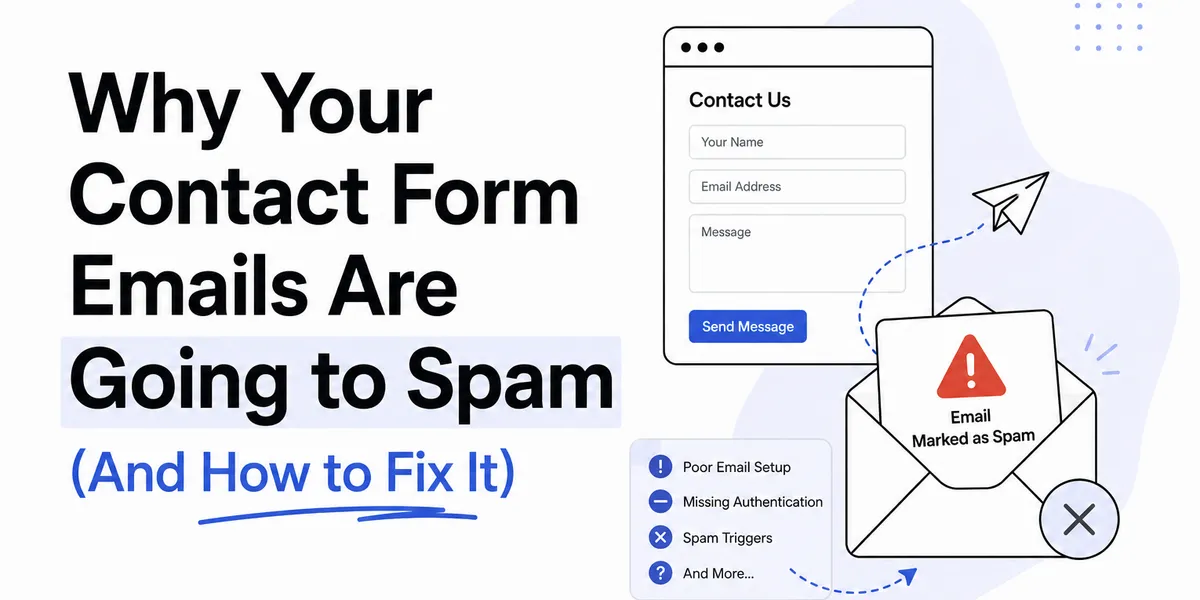
Your contact form is working. Submissions are going through. But leads are emailing you a week later asking why you never responded, and you’re finding their messages buried in your spam folder.
This is one of those problems that’s annoying to debug because it can be caused by several different things, and the fix depends on which part of the stack is the actual problem.
Why legitimate emails end up in spam
Email providers use a combination of signals to decide whether a message is spam. The main ones are:
Sender reputation: The IP address and domain that sent the email have a history. If the sending server has been used for spam in the past, or if it’s a new server with no sending history, that counts against it.
Authentication headers: Three DNS records, SPF, DKIM, and DMARC, tell receiving mail servers whether the claimed sender is authorized to send from that domain. Missing or incorrect authentication is a major spam signal.
Content: The subject line, body text, and HTML structure of the email are analyzed. Emails that look like notifications from web forms are generally fine, but certain patterns (lots of links, suspicious URLs, HTML-only emails with no plain text) raise flags.
Your recipient’s email provider: Gmail, Outlook, and Apple Mail each have their own filtering logic. An email that reaches Gmail’s inbox might still land in Outlook’s junk folder.
Two different spam problems to distinguish
Before debugging, it’s worth separating two scenarios:
Scenario A: Spam submissions are coming in from bots and you’re getting junk in your inbox from your own form.
Scenario B: Real submissions from real people are landing in your spam folder and you’re missing legitimate messages.
These are opposite problems with different solutions. This article focuses on Scenario B.
If you’re rolling your own email (Nodemailer, SMTP, etc.)
If you set up form handling with your own backend and Nodemailer or a similar library, your email is being sent from wherever your server lives. If that’s a shared hosting environment, a cheap VPS, or a new cloud instance, the sending IP probably has no established reputation.
Gmail and Outlook apply significantly more scrutiny to email from servers with low reputation or no reputation. The path forward is:
Use a transactional email service instead of sending directly. Services like Resend, Postmark, SendGrid, and Mailgun have established sending infrastructure with strong reputations. Instead of sending from your server’s IP, you’re sending through their infrastructure, which has already built up a good reputation from handling large volumes of legitimate email.
Switching from Nodemailer with raw SMTP to Resend, for example, looks like this:
// Before: Nodemailer with SMTPconst transporter = nodemailer.createTransporter({ host: "smtp.yourhost.com", port: 587, auth: { user: "...", pass: "..." },})
// After: Resendimport { Resend } from "resend"const resend = new Resend(process.env.RESEND_API_KEY)
await resend.emails.send({ subject: "New contact form submission", text: `From: ${name}\n${message}`,})Most transactional email services have a free tier generous enough for a contact form.
Set up SPF and DKIM for your sending domain. Your transactional email provider will give you DNS records to add. These tell receiving servers that your domain has authorized that service to send on its behalf. Without them, your email is much more likely to be flagged.
This is done in your domain registrar’s DNS settings (Cloudflare, Namecheap, Google Domains, etc.). The provider’s documentation will walk you through the exact records to add.
If you’re using a form endpoint service
If you’re using Formspree, Netlify Forms, Lucid Forms, or similar, the email is being sent by the service’s infrastructure, not yours. The spam issue is either:
The service’s sending reputation: Established services have good reputations. If submissions are landing in spam, it’s usually not this. But if you’re using a newer or less established service, it’s worth checking.
How the notification email is formatted: Some services send notification emails that look generic and template-y. Email providers sometimes flag these more aggressively.
Your own email provider’s filters: Your inbox’s spam filter might be miscategorizing the notifications. Check if there’s a specific rule or filter that’s moving them. In Gmail, look under Settings > Filters and Blocked Addresses.
The fix for this scenario: In Gmail, find one of the misclassified notifications, open it, click the three-dot menu, and select “Not spam” or “Filter messages like these.” Then create a filter that tells Gmail to never send emails from that sender to spam. This trains the filter and creates an explicit rule.
In Gmail: open the email, click the three-dot menu, choose “Filter messages like this,” and on the next screen, check “Never send it to Spam.” This creates a permanent rule that overrides the spam classifier for that sender.
Checking if the email was sent at all
Before assuming it’s a spam issue, verify the submission was actually sent. Most form endpoint services have a dashboard where you can see every submission and its status. If the submission shows up in the dashboard but you didn’t get the email, it’s a delivery problem. If the submission isn’t even in the dashboard, something else is wrong.
If you’re running your own email code, add error logging around the send call:
try { await resend.emails.send({ ... }) console.log("Email sent successfully")} catch (error) { console.error("Failed to send email:", error) // Also consider storing the submission somewhere // so you don't lose it if email fails}Failing silently means you have no way to know when email delivery breaks.
The DMARC problem
If you’re sending from a domain with a DMARC policy set to p=reject and your SPF and DKIM aren’t correctly configured for your sending service, email will either be rejected entirely or delivered to spam. Some domain registrars and hosting providers automatically add DMARC records, and if your email configuration doesn’t match what DMARC expects, delivery fails.
Check your domain’s DNS records for a _dmarc TXT entry. If you find one with p=reject or p=quarantine, make sure your SPF and DKIM records align correctly with whatever service is sending your form notifications.
Tools like MXToolbox let you check your domain’s SPF, DKIM, and DMARC records without having to dig into DNS yourself.
Quick checklist
If form submission emails are landing in spam:
- Check whether the submission appears in your form service’s dashboard (is it a sending problem or a filtering problem?)
- Whitelist the sender address in your email client
- If sending yourself, switch to a transactional email service and configure SPF/DKIM
- Check your domain’s DMARC record and ensure it’s consistent with your sending setup
- Look for any filters in your email client that might be moving these automatically
- Send a test submission and watch where it lands, Gmail’s “Show original” option shows you the spam score and which checks passed or failed
The “Show original” option in Gmail is especially useful. It shows you the full headers including the spam score, whether SPF passed, whether DKIM passed, and what signals pushed the email toward spam. That information points you directly at what to fix.
Most of the time, adding SPF and DKIM records for your sending domain or switching to a proper transactional email service resolves it. DNS propagation takes up to 48 hours, so give it time after making changes before concluding that something didn’t work.